How it works
In order to differentiate between the different jobs and the email addresses/messages that have to be associated with them, you must build a mapping table (called email info map).
- A key, used to identify the job and to determine which message/address(es) must be
attached.
- In case of FTP receive, Submit hierarchy, Folder and Job dismantler, this is a folder name.
- In case of a Submit point, this is the name of the Switch user that submits the job.
- In case of Mail receive, this is the sender's email address or email account or a key word that must be present in the mail subject line (depending on what you select in the Base map key on property (subordinate property of Attach extra email info).
By default, the mapping table contains an entry for the special key <all>. This entry allows you to specify email info that should be added to all jobs, regardless of their key. If this key is left empty, however, it will be ignored.
- One or more email addresses that will be attached to the job. Make sure to use semicolons (not surrounded by spaces) to separate the email addresses.
- An email message consisting of one or more paragraphs. You can use Switch variables in your body text, for example to refer to the name of the job.
The email info map can contain as many entries as you need. Note that the order of the entries in the map is not important.
Example 1: Attaching email info through FTP receive
Let's say that you've set up an FTP site where your customers submit jobs.There is a separate subfolder for each of your customers (with the appropriate access rights) and you want to make sure that the responsible account manager is informed.
- Configure an FTP receive flow element. Make sure to check all the relevant subfolders (see "Subfolder levels" property).
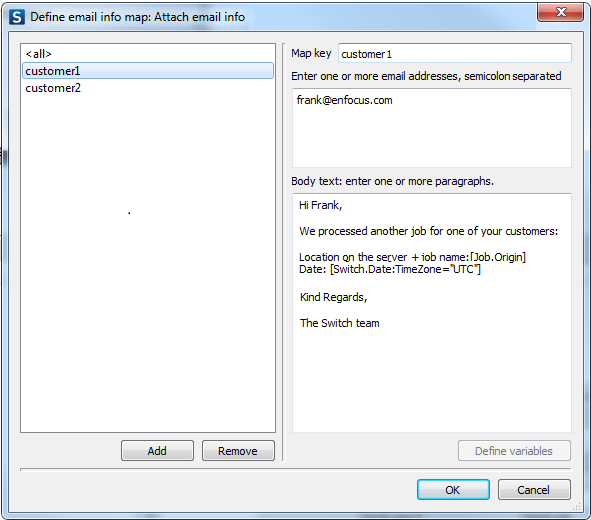
- Click Attach email info and create an email info map, mapping the name of the customer's subfolder (the "key") to the responsible account manager's email address, as shown below. Note that you could enter the customer's email address as well, as required.
- Further in the flow, configure a Mail send flow element (see Using attached email info ).
- FTP receive always uses subfolder names as the key, whereas as Mail receive allows selecting the basis for the key ("base map key on").
- It is possible to have multiple key matches for the same job. For example, if a job is submitted in a nested subfolder some levels deep, FTP receive uses each of the subfolder names in the nested subfolder path as a key in the mapping table. The email information for all matches is combined and associated with the job. This is also the case for the <all> key.
Example 2: Attaching email info through Mail receive
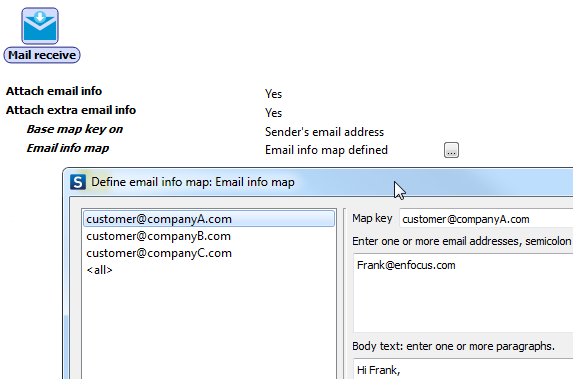
Suppose the jobs in your flows are submitted through mail. You want to attach the sender's email address (for future reference) as well as the account manager's email address.
- Configure a Mail receive flow element.
- Set Attach email info to Yes, to make sure the sender's email address is stored.
- Set Attach extra email info to Yes and
configure the subordinate properties:
- Base map key on Sender's email address.
- Create an email info map, making sure the keys are your customer's email addresses. Note that the email address in the map key can be either the complete email address or only the part in front of/following the @ sign.