The Select objects
tool  allows you to select one or more objects. This can be either a (part of a) graphic
or a text segment.
allows you to select one or more objects. This can be either a (part of a) graphic
or a text segment.
To select one or more objects
-
In the PitStop Inspect panel, click the Select Objects
tool .
-
Do one of the following:
- To select one object, click it.
- To select several objects in one go, hold down the
Shift key while clicking the objects to include
in the selection. Note: If your selection contains an object that you wish to unselect, just click it once more (while still holding down the Shift key).
Alternatively, you can drag a rectangle around the objects to select them.
Depending on your preferences, it may be enough to partly select the objects, while holding down the Alt key. Refer to Hold down Alt key when dragging a selection area.The bounding box of the selected object(s) is shown. It has handles that can be used to scale or rotate the selected object(s).
Example of a single selection (text):

Example of a multiple selection (3 different objects):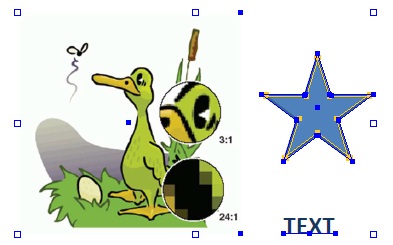 Note: If you enabled Show center selection handle in the PitStop Pro preferences, a point of origin in the center of each object’s bounding box will appear as well.
Special cases:
- Clicking a compound path selects only the segment of the path that was
clicked upon. Double-clicking such a compound path selects the complete
object.
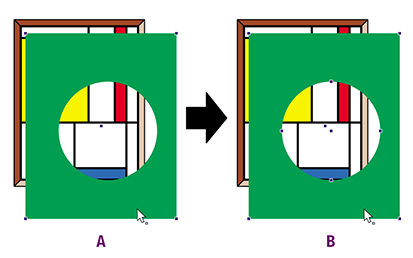
- You can select an object that is masked by clicking on the (invisible) part of the object outside of the mask. The order of objects is retained. This means that an overlaying invisible (masked) rectangle will be selected instead of an underlying visible object when clicked. The mask itself can be selected by clicking on its (invisible) outline. If you move the cursor over an invisible mask, the pointer will be inverted. Double-clicking the mask selects the entire mask group. If you double-click a masked image, the first mask belonging to the image is selected.