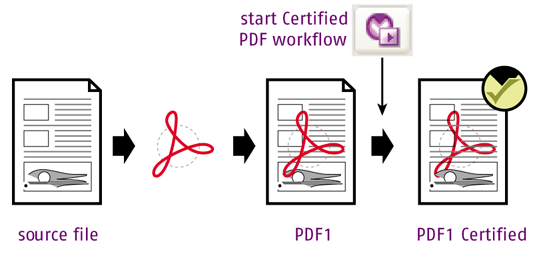
Starting a Certified PDF workflow for a PDF document means that you ‘stamp’ the document: You provide it with the information necessary to enjoy the benefits of the Certified PDF workflow for that particular PDF document. As soon as you have started a Certified PDF workflow for a document, any change made to the document will be “recorded” per editing session and can be traced in the Edit Log.
To start a Certified PDF workflow
-
Do one of the following:
- Choose .
- Open the Certified PDF panel (in the Tools pane) and click
 . This will open the Enfocus Certified PDF
Panel. Next, click the Start
Edit Log button.
. This will open the Enfocus Certified PDF
Panel. Next, click the Start
Edit Log button.
The Certified PDF workflow has now been started for this PDF document.
-
Click
 to close the Enfocus Certified PDF Panel.
Now that the PDF is in a Certified workflow, next time when you open the document
and make changes, these changes are recorded automatically.