
FTP receive is a producer that downloads jobs from an (S)FTP site and injects them into the flow. The syntax is similar to the syntax of a Submit hierarchy.
If your system environment requires (S)FTP connections to pass through a proxy server, you need to set up the FTP proxy preferences to provide Switch with the configuration details of the proxy server. See Switch preferences: FTP proxy.
Keywords
If you enter one of the following keywords in the Search field at the top of the Flow elements pane, the FTP receive element will be shown in the list:
- Internet
- web
- FTP
- SFTP
- network
- communication
- transfer
- input
- download
Connections
FTP receive does not allow incoming connections.
FTP receive injects folder filter properties into its outgoing connections so that it is possible to include/exclude certain subfolders in the incoming job folders for particular connections. Also see the "skip folders" property described below.
Properties
Property |
Description |
|---|---|
Name |
The name of the flow element displayed in the canvas. |
Description |
A description of the flow element displayed in the canvas. This description is also shown in the tooltip that appears when moving your cursor over the flow element |
| Server type | Select FTP or SFTP.
|
| Passive mode |
Only available if server type = FTP If set to Yes, FTP receive uses passive mode to communicate with the FTP server; otherwise it uses active mode. |
| Authentication method |
Only available if server type = SFTP You have two options:
Note: Alternatively, you can set the authentication method when selecting the FTP directory (See the
FTP directory property: click
 and Choose FTP directory).
 |
User name |
The login name for the (S)FTP server. For anonymous login, use "anonymous" as user name. Note: If you're using the (S)FTP proxy protocol, append an @ sign and the target
(S)FTP site address (domain or IP address) to the regular
user name (<ftpserverusername>@<ftpserveraddress>).
|
| Password | The password for the (S)FTP server. For anonymous use, enter an e-mail address as
password. This property is not available if you have chosen for Public key as authentication method for the SFTP server. |
FTP server address |
The URL or IP address of the (S)FTP server from which jobs are to be retrieved. Note: If you're using the (S)FTP proxy protocol, this should be
the URL or IP address of the proxy server.
|
Port |
The port used by the (S)FTP server. |
FTP directory |
The directory on the (S)FTP site from which jobs are to be retrieved. If the path starts with a forward slash "/", it is relative to the user's home directory. If the path starts with a double forward slash, it is relative to the (S)FTP site's system root. This is only useful if the user has access to the complete file system on the (S)FTP site. |
Leave originals on server |
If set to Yes, incoming jobs are left untouched on the FTP site; Switch never writes to the site so read-only access rights suffice; see Leaving originals in place for more details If set to No (default), incoming jobs are removed from the FTP site; Switch needs full access rights to rename, create and remove files and folders on the FTP site. |
Ignore updates |
The Ignore updates option is available only if Leave originals on server is set to Yes. If set to Yes, a job will only be processed once, regardless of any changes to the file size or modification date. This can be used for workflows where the input job is replaced by the processing result, to avoid triggering endless loops. If set to No, the job will be reprocessed when its file size or modification date is different. This allows processing jobs which have the same file name as previously submitted jobs. |
Minimum file size (KB) |
Used to set the minimum file size (in KB) limit before Switch picks up the files or folders. To set no limits, leave it empty. |
Check every (minutes) |
The frequency of checking the FTP directory for new jobs. |
Time-of-day window |
If set to Yes, the tool checks for new arrivals only during a certain time of the day (specified in the subordinate properties). |
Allow from (hh:mm) |
The time-of-day window during which to check for new arrivals; the values are structured as "hh:mm" (hours, minutes) indicating a time of day on a 24 hour clock; an empty value means midnight; two identical values mean that the tool always detects jobs. |
Allow to (hh:mm) |
|
Day-of-week window |
If set to Yes, the tool checks for new arrivals only during certain days of the week (specified in the subordinate properties). |
Allow from |
The days of the week (Monday, Tuesday, Wednesday, Thursday, Friday, Saturday, Sunday) during which to check for new arrivals; two identical values mean that the tool only checks for new arrivals on that specific day. |
Allow to |
|
Day-of-month window |
If set to Yes, the tool checks for new arrivals only during a certain day of the month (specified in the subordinate properties). |
Day |
The day in the month during which to check for new arrivals, as a number in the range [1 . . 31]; the default value of one means the first or the last day of the month (depending on the following property). |
Relative to |
Determines whether the day of the month is relative to Start of month or End of the month. |
Subfolder levels |
The number of nested subfolder levels considered to be hot folders (as opposed to job folders); see also the description on subfolders earlier. |
Process these folders |
Defines the initial set of folders that should be processed. This set can be adjusted by defining rules in the subsequent properties. |
Adjusted by (rule 1) .....(rule 5) |
This property defines a rule for adjusting the set of folders to be processed, by including or excluding folders matching or not matching a folder name. Different rules can be applied and will be processed in the order as they are specified. Additional properties for this rule are:
|
Attach hierarchy info |
If set to Yes, (part of) a job's submit location is added to its hierarchy location path as it is submitted in the flow; see Using hierarchy info for more details. |
Include FTP name |
Only available if Attach hierarchy info is enabled. If set to Yes, the name of the flow element is included at the top of the remembered location path. |
Include subfolder levels |
Identifies the number of hierarchy segments in the hierarchy information. |
Save top subfolders |
If set to Yes, the top-most subfolders are remembered in the location path, otherwise the bottom-most subfolders are remembered. |
Attach email info |
E-mail addresses and body text specified with the editor for this property are added to each job's e-mail info as the job is injected in the flow; the information added can vary depending on the subfolder in which the job was located; see Using email info in Switch for more details. |
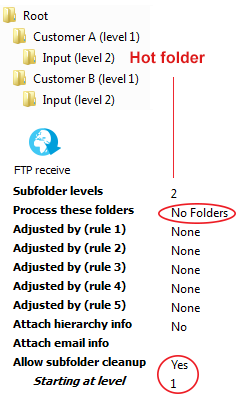
Allow subfolder cleanup |
If set to Yes, empty subfolders in the hot folder will
be removed starting from the level defined in the next property
(Starting at level).
Note: This option is useful if
Process these folders is set to
No Folders (see higher), because
in that case only files are taken from the FTP, while
(empty) folders are left.
|
Starting at level |
The folder level (inside of the hot folder) where the folder cleanup should
start:
 |