The table below gives an overview of the main screen areas and functionality.
Note that the UI may be customized, so the colors may be different, there may be fewer tabs in the right part of the UI, and the buttons may have a different text. All this depends on the configuration in Switch. The image below is an example with all functionality enabled.
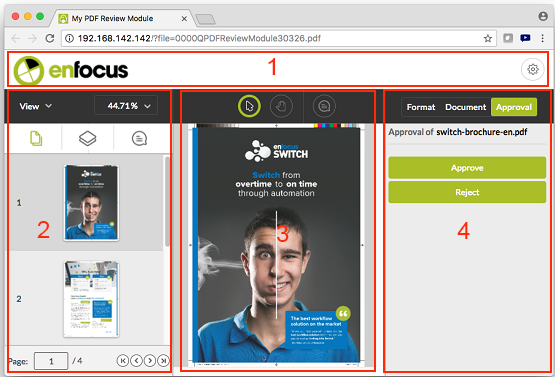
| # | Area | Functionality |
|---|---|---|
| 1 | Title bar with the logo of the company that provided you with the file. The
icon |
|
| 2 | The left part of the screen is the sidebar. The sidebar can be collapsed or expanded (as in this example) and can contain 3 different tabs:
The View menu above the tabs allows to hide or show certain screen elements, such as page boxes, rulers and guides, etc. (if enabled in Switch). You can also zoom in or zoom out as required. |
Walking through a multi-page PDF Adding, editing and removing comments |
| 3 | The central part displays the PDF file. The toolbar gives access to three different tools: 
The tool that is active is highlighted (in this example: the add comments tool). |
Viewing the properties of one or more objects |
| 4 | The right panel can contain 3 tabs:
The active tab is highlighted (in this example: the Approval tab). Note: To save
space, this panel may be collapsed. It will be expanded automatically whenever you click
one of the tabs at the top.
|
Viewing the properties of one or more objects Viewing document properties, fonts and separations Reviewing a file in the PDF Review Module Approving or rejecting a document |
 in the top
right corner, gives access to the User Preferences dialog, where you can change the
language and the unit of measure.
in the top
right corner, gives access to the User Preferences dialog, where you can change the
language and the unit of measure.  Thumbnails of all pages (this tab is always available)
 Layers if any (available if there are no layers in the document, or if the
function is disabled in Switch, this tab is absent)
Layers if any (available if there are no layers in the document, or if the
function is disabled in Switch, this tab is absent)  Comments (available if the View comments functionality is enabled in
Switch)
Comments (available if the View comments functionality is enabled in
Switch)